13 sierpnia 2025
Improved
Remote Access
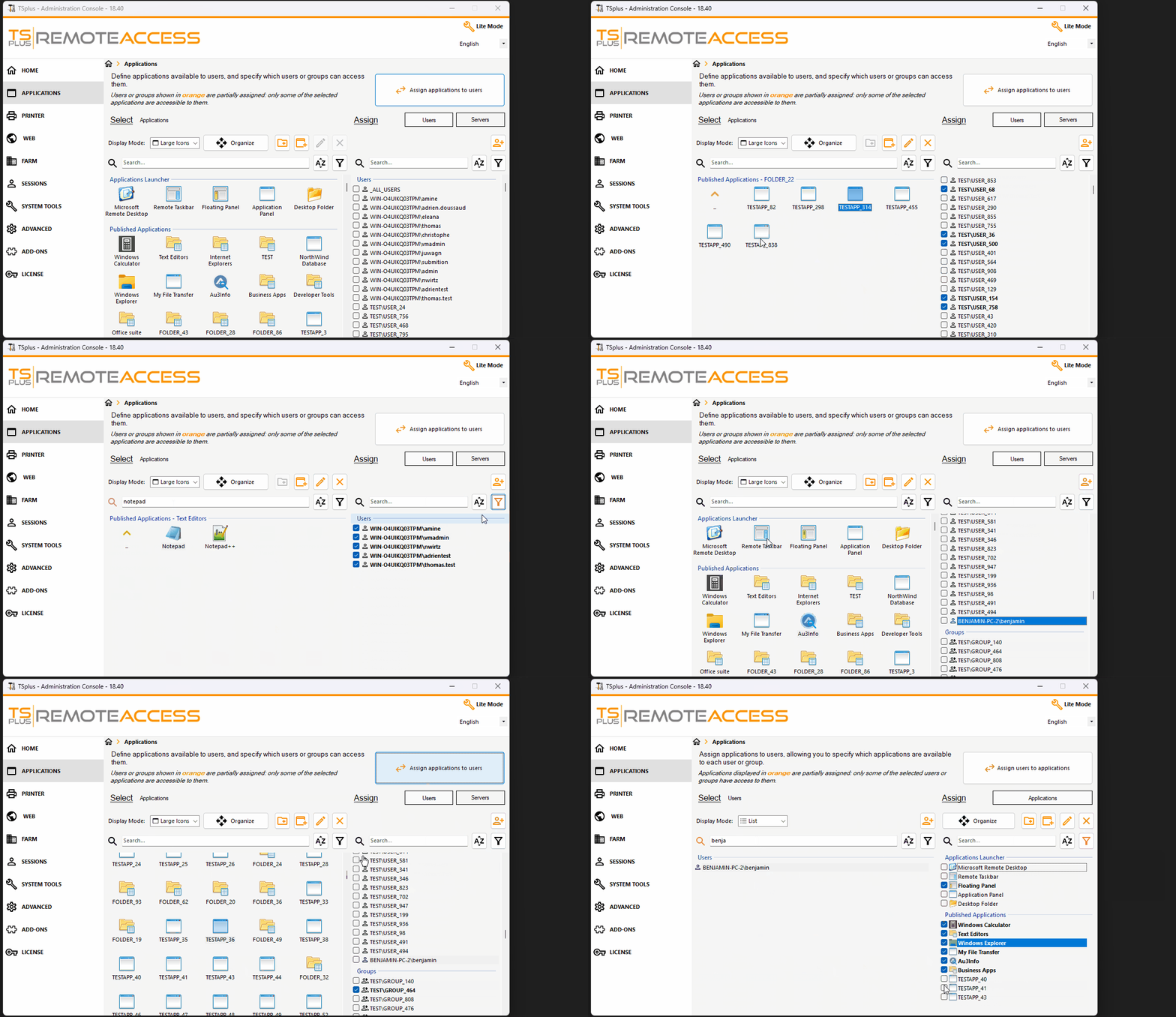
Remote Access v18.50.8.12 - "Applications" section revamp
We are happy to announce the release of the "Applications" section revamp of Remote Access!
In the new Applications section, you will now always have two panels:
one on the left where you select items (such as applications)
one on the right where you assign entities (such as users/groups) to the selected items by ticking checkboxes of these entities
The goal is to simplify the assignment process as much as possible, as well as improving its visualization. As a result, a "swap" button which allow you to change the "select panel" with the "assign panel" has been added. This means that you will be able to quickly:
assign users/groups to applications (default view) or if you swap:
assign applications to users/groups
Important : the new interface allow multi selection (no need to do assignation one user/application at a time anymore), meaning you can
assign one or more applications to one or more users for example, by selecting all the applications the users needs on the left, and tick all their user name to the right
assign multiple users/groups to one or more applications, by selecting all the users/groups you want on the left, and assign them all the applications they need by ticking the application names on the right
In order to make the assignation process more manageable when there is lots of published applications and/or assigned users/groups, on both panels have been added:
a search box
a sorting button
a filtering button
Finally, lots of "natural" actions have also been implemented to try matching with the user experience you have on the Windows explorer, making one's life easier. Basically, you will now be able to:
Rename application/folder with pressing F2 or clicking 2 times on an application icon
Create new folder via the new button "create new folder" which will add an empty application folder that you can rename and use afterwards
Delete multiple applications/folder, just select the applications/folders you want to delete and press "Del" or click on "Delete"
Move one or more applications to a specific folder by drag/dropping it on the folder
Reorganize applications/folders by using the new "Organize" button (previously it was a left and right arrow), once clicked, just select the applications/folders you want to reorganize and drag/drop them to the proper location in the list
Drag/drop a file from the windows explorer to the AdminTool to add it as a new application