Remote Access - RDP file signing mechanism added
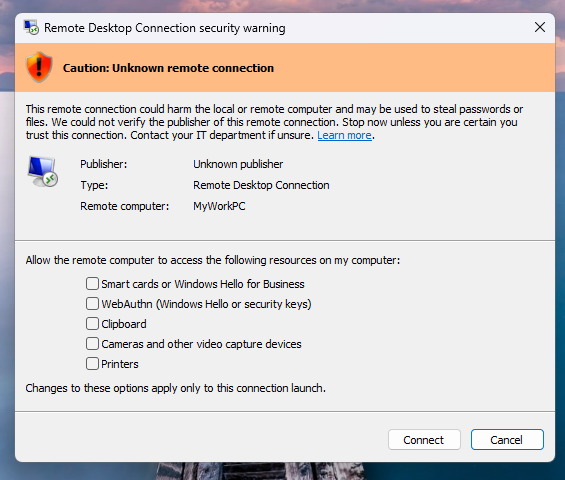
Remote Access v19.30.5.21 embed Connection Client V127 which now sign RDP file used to start the connection to your server, whether from a .connect file, or by selecting the “remoteapp“ display mode from your Remote Access web portal.
This RDP signing mechanism has been added to comply with Microsoft new security policy regarding un-signed RDP usage (more information here: https://learn.microsoft.com/en-us/windows-server/remote/remote-desktop-services/remotepc/understanding-security-warnings), showing 2 new warning popups otherwise.
However, simply signing the RDP file to be used is not enough to remove these warnings, as you will also need to:
install our new RDP signing certificate in the "Trusted Root Certification Authorities" store
register the thumbprint of the certificate as a trusted .rdp publisher (this requires to be an admin)
Both action are done by the Connection Client setup via the following new page, when clicking on the “Configure now (requires admin)“ button.
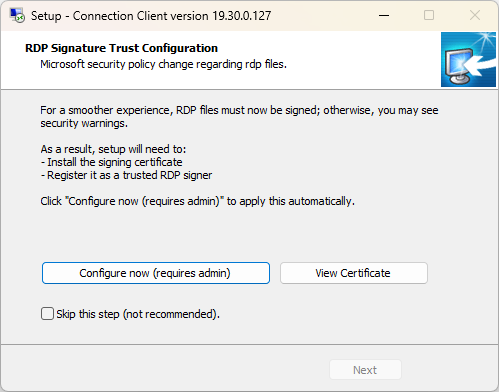
This configuration only needs to be done once.
You won’t be asked to install the certificate next time you install the Connection Client, unless we renewed our RDP signing certificate, which should be every 5 year.
Important:
The RDP signing certificate installation page does not appear when you install the connection client "for all users" since this mode starts the setup as an admin, making us able to automatically install and register the certificate without needing to ask the user to elevate as an admin.
The .rdp file signing processing, done the first time a new .connect is launched, is done remotely by our licenseapi.dl-files.com server.
The certificate itself is also being downloaded by the setup connectionclient on https://licenseapi.dl-files.com/cert/signer.crt
As a result, your workstation must be allowed to contact licenseapi.dl-files.com on port 443.
Have an idea or issue? To ensure your feedback is properly tracked and addressed, please use our dedicated channels: Support for issues and Feedback for feature requests. Thank you for helping us improve!